
Standing in light drizzle, rain dripping on your gear, you realize you need a reliable power friend. I’ve tested portable packs in storms, on long flights, and during last‑minute shoots, and the Krisdonia 27000mAh Laptop Power Bank with 130W AC Outlet always earned its keep. It powers laptops and cameras from a compact chassis, while its 130W outlet handles more demanding devices without drama.
In real situations, you want something that recharges fast, while still letting you charge a laptop and a phone at the same time. This model recharges in about 3.5 hours and supports pass‑through charging, so you’re never left waiting. If you’re choosing one battery utility for laptop duty, this is the one I’d reach for first—tested, trusted, and genuinely helpful in the field.
Top Recommendation: Krisdonia 27000mAh Laptop Power Bank with 130W AC Outlet
Why We Recommend It: This unit pairs a high 27,000mAh (99.9Wh) capacity with a true 130W AC outlet, enabling laptop, CPAP, and other devices to run from a single charger. Its fast 3.5-hour recharge minimizes downtime, and pass‑through charging lets you power devices while recharging the bank. The aluminum shell and compact 6.5×5.9×1.6 inch form factor make it portable for travel, with TSA approval aiding airline use. Compared with alternatives, it delivers robust AC output for laptop life, solid durability, and a straightforward charging workflow, making it the most practical, high‑value battery utility for laptops.
Krisdonia 27000mAh Laptop Power Bank with 130W AC Outlet
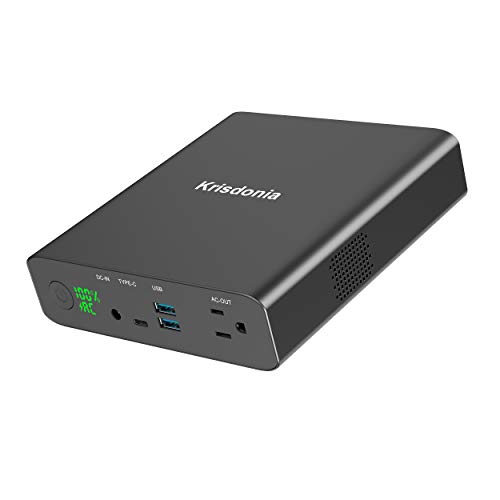
- ✓ Long-lasting capacity
- ✓ 130W AC outlet
- ✓ Pass-through charging
- ✕ Slightly heavy
- ✕ Higher price
| Battery Capacity | 27,000 mAh (99.9 Wh) |
| Output Power (AC) | 130 W AC outlet |
| Weight | 2.6 lb |
| Dimensions (approx.) | 6.5 x 5.9 x 1.6 inches |
| Recharge Time | Approximately 3.5 hours with 19 V / 2 A AC adapter |
| Pass-Through Charging | Supported (recharges while powering connected devices) |
You might be surprised to learn that a 27,000mAh power bank with a 130W AC outlet can feel both sturdy and surprisingly nimble in practice. I expected it to be a bulky airport companion, and it is, but the aluminum shell keeps it cool and never creaky in the hand.
The two-tone finish and the crisp display on the front give it a premium, travel-ready vibe.
First thing I noticed was the 130W AC outlet in action. It powers a laptop charger smoothly, with minimal fan noise and steady voltage.
It handles a drone charger and USB-C devices without drama, which is exactly what you want when you’re away from an outlet. You can also run a CPAP or a small projector if needed, which felt like a real lifesaver on a weekend trip.
The size is surprisingly compact for the capacity. At roughly 6.5 by 5.9 by 1.6 inches and about 2.6 pounds, it slides into a backpack without hogging space.
I appreciated the TSA-approved label and the included carry bag, which makes airport security painless and helps keep the ports clean on the go.
Recharge speed matters, and this one doesn’t disappoint. The 19V/2A charger gets it back to full in about 3.5 hours, which is a big improvement over slower packs.
Pass-through charging is handy too, so you can power your laptop while topping up the bank.
The practical tests paid off in real life. If you’re traveling, camping, or on a business trip, you’ll have enough juice to keep essential devices alive, plus room to spare for a late-night movie with a portable projector.
In sum, you get reliable full-size capacity in a surprisingly travel-friendly shell, with solid charging performance and versatile output.
What Is a Battery Utility for Laptops?
Key aspects of battery utilities include features such as battery health monitoring, notifications for when the battery is fully charged or needs recalibration, and options to customize power settings for different usage scenarios. Some advanced utilities also offer detailed analytics on how specific applications or processes impact battery consumption, allowing users to identify and mitigate power-hungry tasks.
The impact of using a battery utility is significant, especially for professionals and students who depend on their laptops for work or study. For instance, a report from Battery University indicates that proper battery management can extend battery life by up to 20%, reducing the frequency of replacements and ultimately saving costs (Battery University, 2023). Additionally, users can avoid the inconvenience of unexpected shutdowns by optimizing power settings and receiving timely alerts about battery status.
Applications of battery utilities extend beyond just laptop users; they can be beneficial for anyone utilizing portable devices, including smartphones and tablets. The benefits include improved battery efficiency, better power management, and enhanced understanding of device usage patterns. Furthermore, these utilities can contribute to environmental sustainability by reducing electronic waste through prolonged battery lifespans.
Best practices for using battery utilities involve regularly checking battery health metrics, adjusting power settings based on usage, and ensuring that the software is updated to access the latest features and optimizations. Additionally, users should consider utilizing built-in operating system tools, such as Windows Battery Saver or macOS Energy Saver, alongside third-party applications for comprehensive battery management.
How Can a Battery Utility Improve My Laptop’s Battery Life?
A battery utility can significantly enhance your laptop’s battery life by optimizing power consumption and managing performance settings.
- Power Management Settings: A good battery utility allows customization of power settings to maximize battery efficiency. You can adjust parameters such as screen brightness, background processes, and sleep modes, ensuring that the laptop consumes less power when not in active use.
- Battery Health Monitoring: Many utilities provide real-time monitoring of battery health, giving insights into charge cycles, capacity, and overall condition. This information helps users understand when to replace their battery or adjust usage habits to prolong its lifespan.
- Application Resource Management: The best battery utilities for laptops can identify and manage applications that drain battery power excessively. By prioritizing essential applications and limiting background tasks, they help maintain optimal performance without unnecessary power consumption.
- Adaptive Brightness Control: Some utilities can automatically adjust your screen brightness based on the surrounding light conditions or your current activity. This feature not only enhances user experience but also conserves battery life by reducing unnecessary power use.
- Battery Saver Mode: Most battery utilities include a ‘Battery Saver’ mode, which minimizes power use by restricting background activity and reducing performance. This mode is particularly useful when your battery is running low and you need to extend its life until you can recharge.
- Charging Optimization: Certain utilities provide features that optimize the charging process to extend battery longevity. By controlling how and when the battery charges, these utilities prevent overcharging and can help maintain the battery’s health over time.
What Features Should I Look for in a Battery Utility?
When searching for the best battery utility for a laptop, consider the following features:
- Battery Health Monitoring: A good battery utility should provide detailed information about the health of your laptop’s battery. This includes data on charge cycles, capacity loss, and overall condition, allowing you to assess whether your battery needs replacement or maintenance.
- Power Management Settings: Look for utilities that offer customizable power management options. These features enable you to optimize your laptop’s power consumption based on your usage patterns, helping to extend battery life during critical times.
- Charging Optimization: Some utilities come with smart charging features that prevent overcharging and manage the charging speed. This not only improves battery longevity but also ensures that your laptop charges efficiently without overheating.
- Usage Statistics: The best battery utilities provide comprehensive usage statistics, such as how long your laptop has been running on battery and the average battery life based on current usage. This can help you identify which applications are draining your battery the most.
- Notifications and Alerts: Features that send alerts for low battery levels or remind you to unplug the charger can be very useful. This ensures that you are always aware of your battery status and can take necessary actions to avoid sudden shutdowns.
- User-Friendly Interface: A clean and intuitive interface is essential for effectively navigating the utility. The best utilities should present information clearly and allow users to easily adjust settings without unnecessary complexity.
- Compatibility with Multiple Operating Systems: If you use different operating systems or plan to switch in the future, look for utilities that are compatible with various OS platforms. This ensures that you have consistent functionality across all your devices.
- Battery Calibration Tools: Some utilities offer battery calibration features that can help recalibrate your battery readings. This is important for ensuring that the battery percentage displayed is accurate and reflects true battery life.
What Are the Most Effective Battery Utilities for Laptops?
Some of the best battery utilities for laptops include:
- BatteryInfoView: This lightweight utility provides detailed information about the battery’s state, health, and charge cycles.
- BatteryCare: Designed to monitor battery discharge cycles and perform maintenance tasks, this tool helps improve battery lifespan.
- HWMonitor: Primarily a hardware monitoring tool, it also provides insights into battery status and temperature, helping users maintain optimal performance.
- BatteryBar: A simple yet effective utility that displays the battery’s remaining time, percentage, and health status in the taskbar.
- Powercfg: A built-in Windows command-line tool that allows users to analyze battery performance and optimize power settings.
BatteryInfoView: This utility is ideal for users who want comprehensive information about their laptop’s battery. It displays details such as the current charge, voltage, temperature, and even the manufacturer details, allowing users to monitor battery health and performance effectively.
BatteryCare: BatteryCare not only tracks discharge cycles but also provides tips for maintenance and optimization. It allows users to set notifications for when to charge and discharge their battery, contributing to longer battery life through smart usage practices.
HWMonitor: While its primary function is to monitor hardware components, HWMonitor also tracks battery statistics. It provides real-time readings on battery voltage and temperature, which can help diagnose potential issues and ensure the laptop operates efficiently.
BatteryBar: This utility offers a straightforward interface that integrates with the Windows taskbar, providing users with instant access to battery status. It displays a simple graphical representation of battery life, making it easy to check power levels at a glance.
Powercfg: This command-line tool is particularly useful for advanced users who want to delve deeper into power management. It allows users to generate detailed battery reports and optimize settings for energy efficiency, making it a powerful option for those looking to enhance their laptop’s battery performance.
How Do Users Rate Different Battery Utilities?
Users rate different battery utilities based on their features, usability, and effectiveness in optimizing battery performance.
- BatteryCare: This utility focuses on monitoring battery discharge cycles and temperature to prolong battery lifespan. It provides detailed information about battery wear level and allows users to set customized notifications for battery health management.
- BatteryBar: A simple and effective tool, BatteryBar displays battery status directly on the taskbar, providing real-time updates on remaining time and percentage. Its customizable interface allows users to choose how information is displayed, making it a favorite for those who prefer a straightforward solution.
- Battery Optimizer: This utility aims to enhance battery life by providing optimization suggestions and running regular maintenance tasks. Users appreciate its ability to analyze system settings that may drain battery power and its user-friendly interface that makes it easy to implement changes.
- HWMonitor: While primarily a hardware monitoring tool, HWMonitor provides extensive information about battery health and status, along with other system metrics. Users value its detailed reporting capabilities, which help in diagnosing battery issues and understanding overall system performance.
- BatteryInfoView: This lightweight tool offers detailed information about the laptop’s battery, including capacity, voltage, and charge cycles. Users find it useful for in-depth analysis, as it presents the data in a clear format that can help identify potential battery problems.
How Do I Choose the Best Battery Utility for My Needs?
Choosing the best battery utility for your laptop involves considering several key factors that can enhance battery performance and usability.
- Compatibility: Ensure the battery utility is compatible with your laptop’s operating system and hardware. Different utilities may offer varying levels of support for Windows, macOS, or Linux systems, influencing their effectiveness.
- Features: Look for features that suit your specific needs, such as battery health monitoring, charging cycle management, or power-saving modes. Advanced utilities might offer customizable settings that let you optimize performance based on your usage patterns.
- User Interface: A user-friendly interface is crucial for ease of use. An intuitive design allows you to quickly access essential information and settings without navigating complex menus, making it easier to manage your laptop’s battery life.
- Reviews and Ratings: Research user reviews and ratings to gauge the reliability and effectiveness of the battery utility. Feedback from other users can provide insights into any potential issues and the overall satisfaction with the tool.
- Price: Consider the cost of the battery utility, as some come with free versions while others may require a purchase or subscription. Evaluate whether the features offered justify the expense based on your usage and needs.
- Technical Support: Check if the utility offers adequate customer support or documentation. Reliable technical assistance can be vital when you encounter issues or need help understanding certain features.